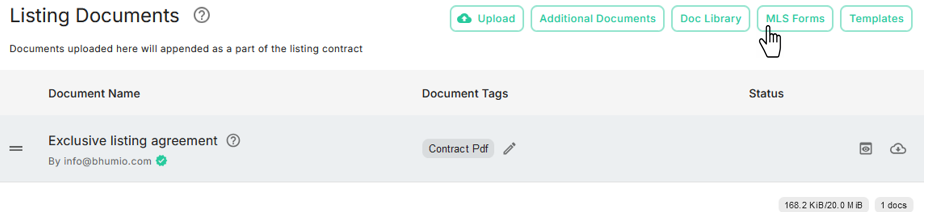
Listing Documents
Navigate to the Listing Documents card on the Listing Contract page.
Documents uploaded here will be appended to the Listing Contract and will form part of the legal contract. You can upload Listing Documents in the following ways:
- Upload: Upload PDF files directly from your local drive or Google Drive.
- Additional Documents: Include files from the Additional Documents section.
- Docs Library: Add files from your Brokerage’s Docs Library, which provides access to documents uploaded by your Brokerage Admin.
- MLS Forms: Search for and include MLS forms in the Listing Contract.
- Templates: Add Brokerage Templates to the Listing Contract.
MLS Forms
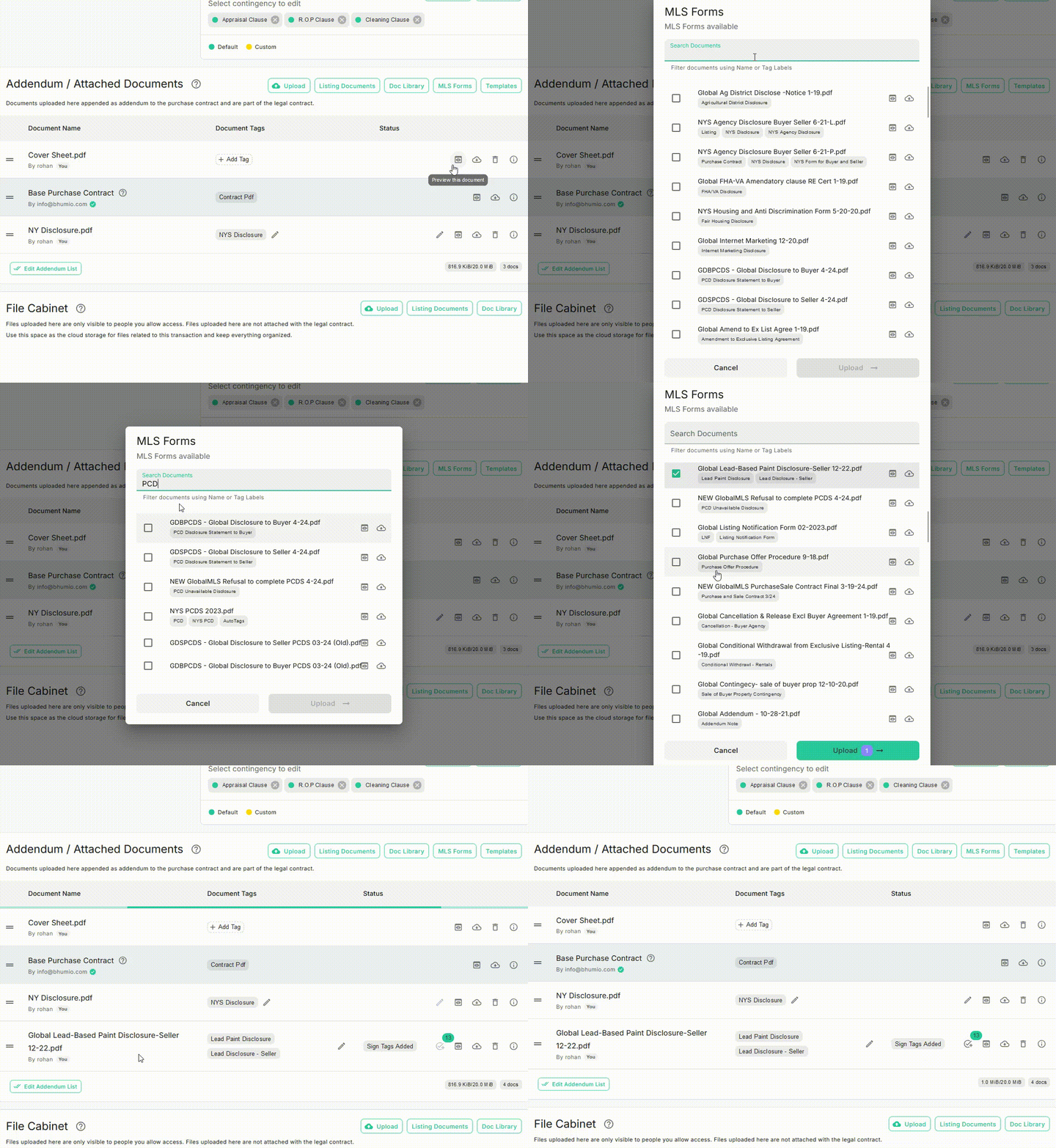
To access your MLS Forms, click the MLS Forms button. This feature is standard across the Bhumio App.
A dialog box will open, displaying the available MLS Forms for your MLS. Select the MLS Form or Disclosure you need, then click Upload to add it to the contract.
Additional Documents
If you need to add Additional Documents after the Seller has e-signed the documents, you can upload your files to the File Cabinet and access them in Listing Documents using the Additional Documents button.
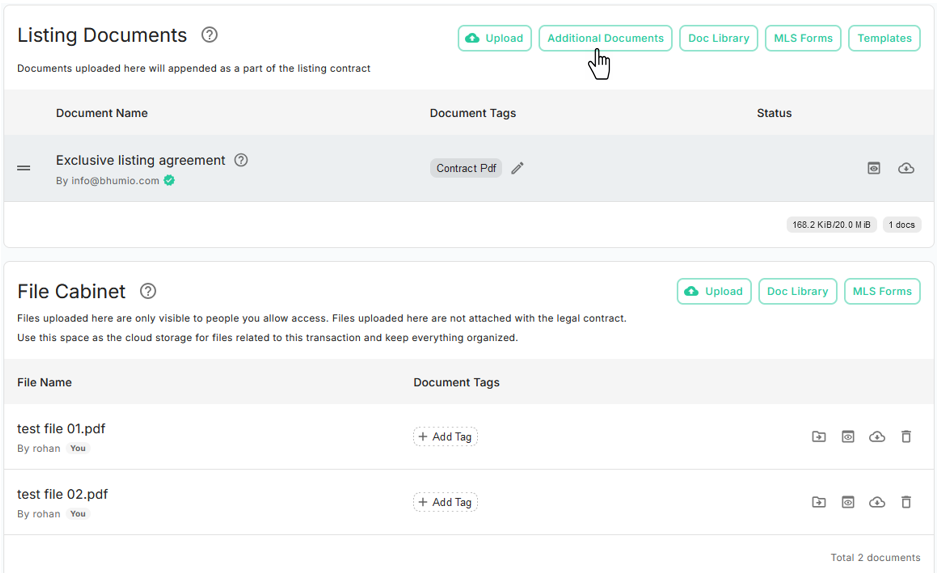
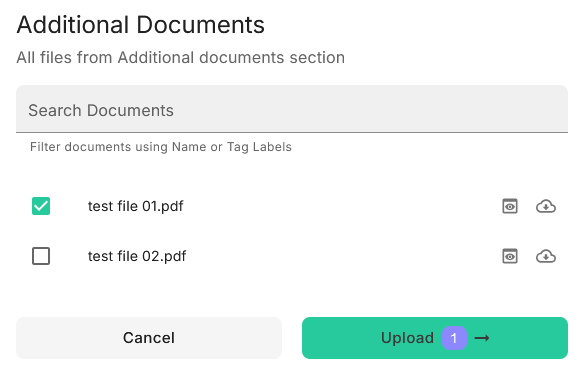
- Click the Additional Documents button to access files uploaded in the File Cabinet.
- Select the required file.
- Click the Upload button.