File Cabinet
Navigate to the File Cabinet card on the Listing Contract page.
Documents uploaded here are personal to you and will not be appended as addendums to the Listing Contract[cite: 2]. You can upload documents to the File Cabinet in the following ways:
- Upload: Upload PDF files directly from your local drive or Google Drive.
- Listing Documents: Upload files from the MLS Listing. The system will automatically convert these files to PDF format.
- Docs Library: Upload files from your Brokerage’s Docs Library, which provides access to documents uploaded by your Brokerage Admin.
Key Capabilities & Workflow
- Private Storage: Secure space to organize non-contract files and personal working documents.
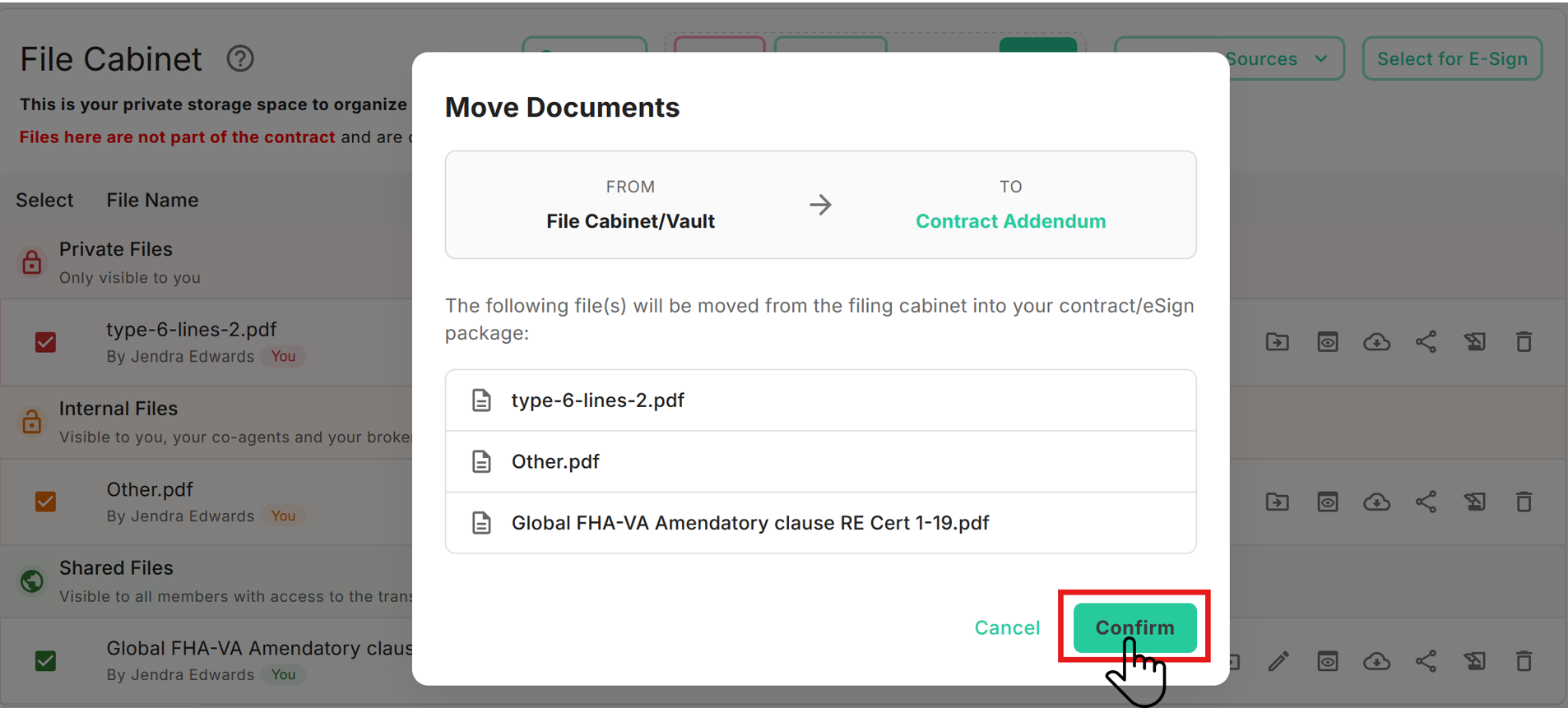
- Return Files to Contract: Seamlessly transfer documents back to Contract Documents if they need to become part of the binding agreement again.
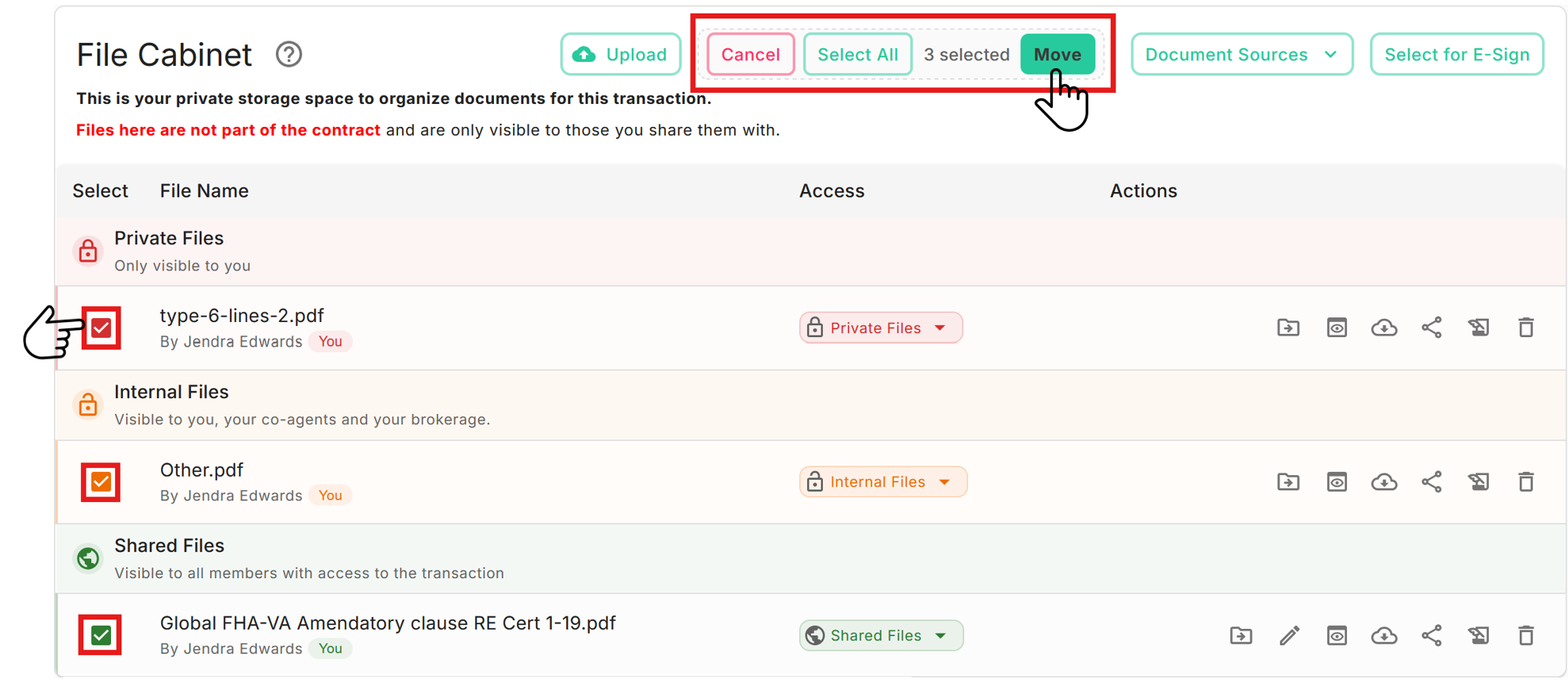
- Batch Operations: Move single items or batch-select multiple files between storage locations effortlessly.
Navigation & Location
- Where to Find It: Open the File Cabinet card inside your active transaction.
- Path:
Home→Transactions→Open or Create a Purchase/Listing Transaction→File Cabinet
Operational Steps
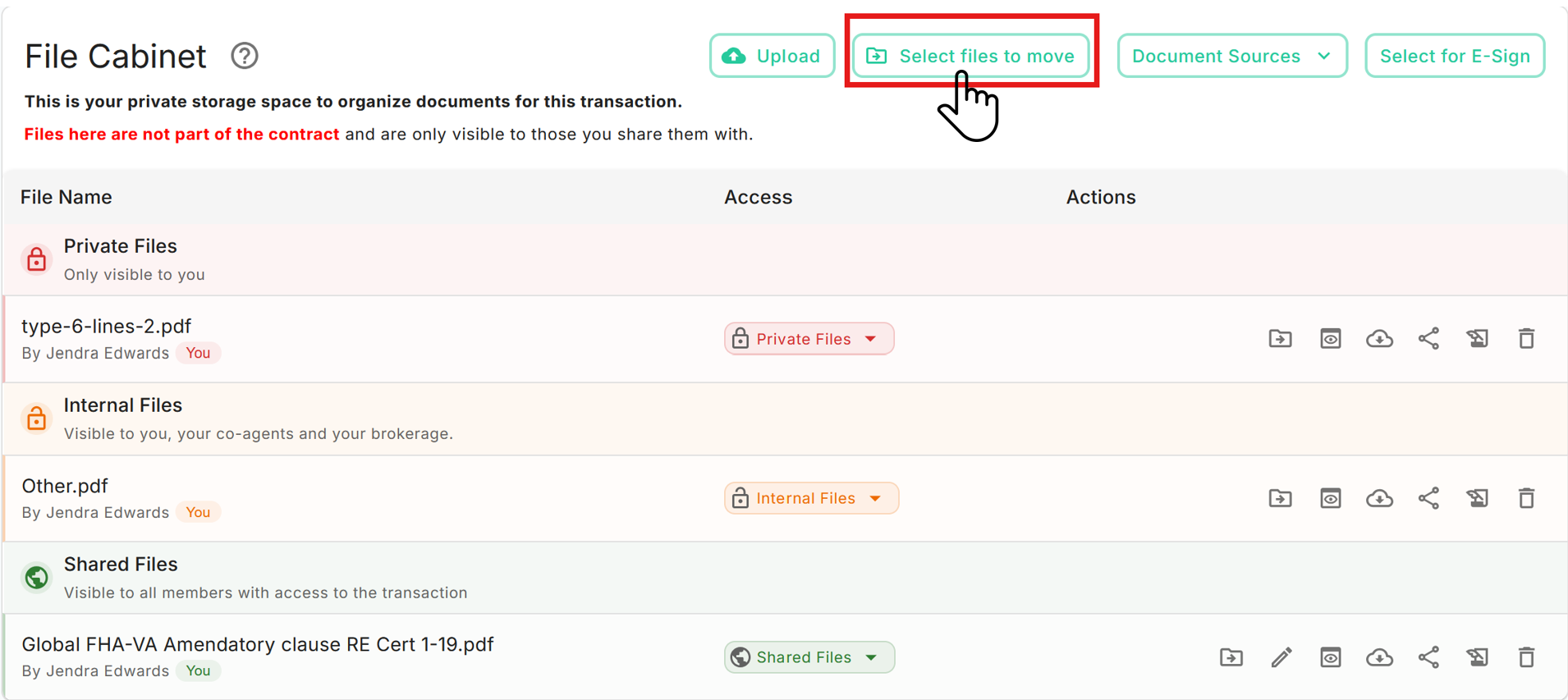
Option 1 – Move Multiple Files
- Click Select files to move at the top right.
- Choose one or more documents from the list.
- Move them back into Contract Documents.
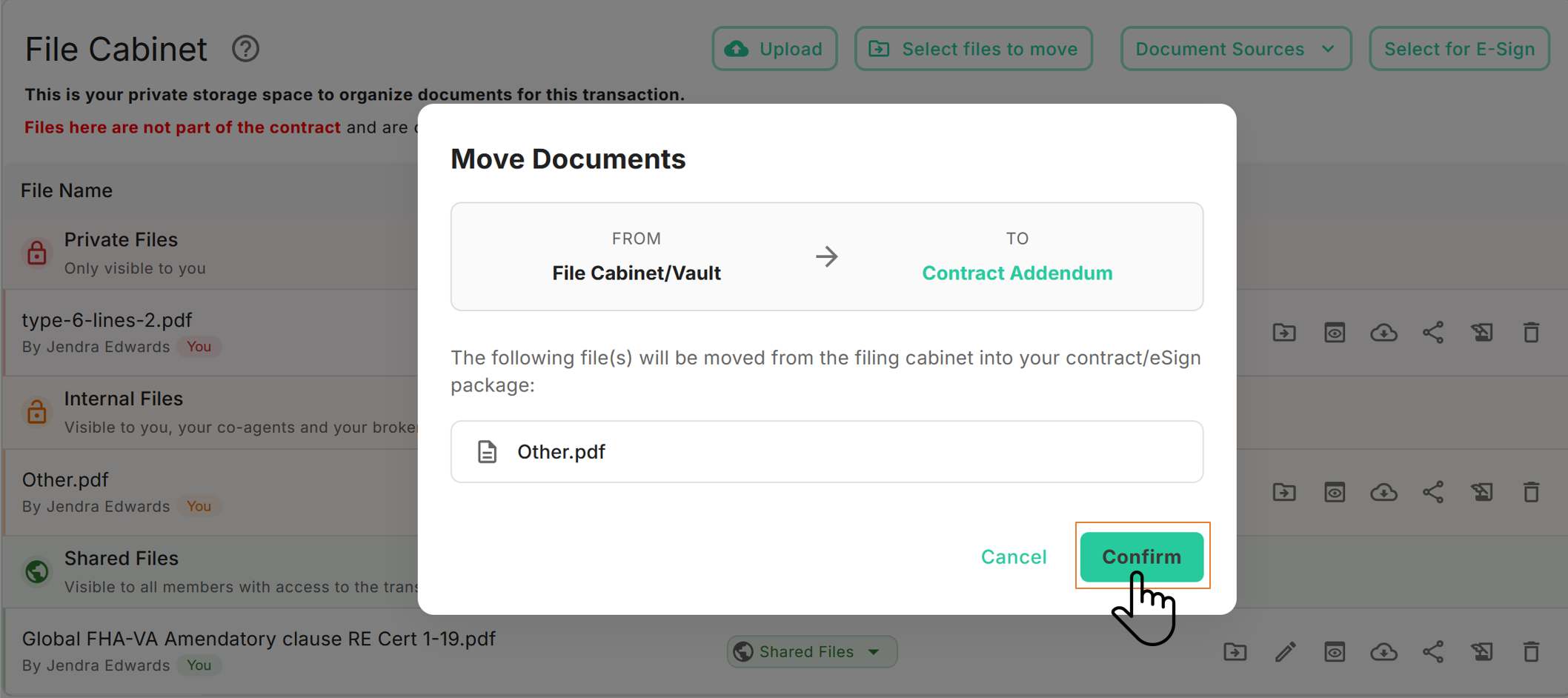
Option 2 – Move a Single File
- Locate the document under Internal Files or Shared Files.
- Click the Move to Contract Documents icon button next to the file.
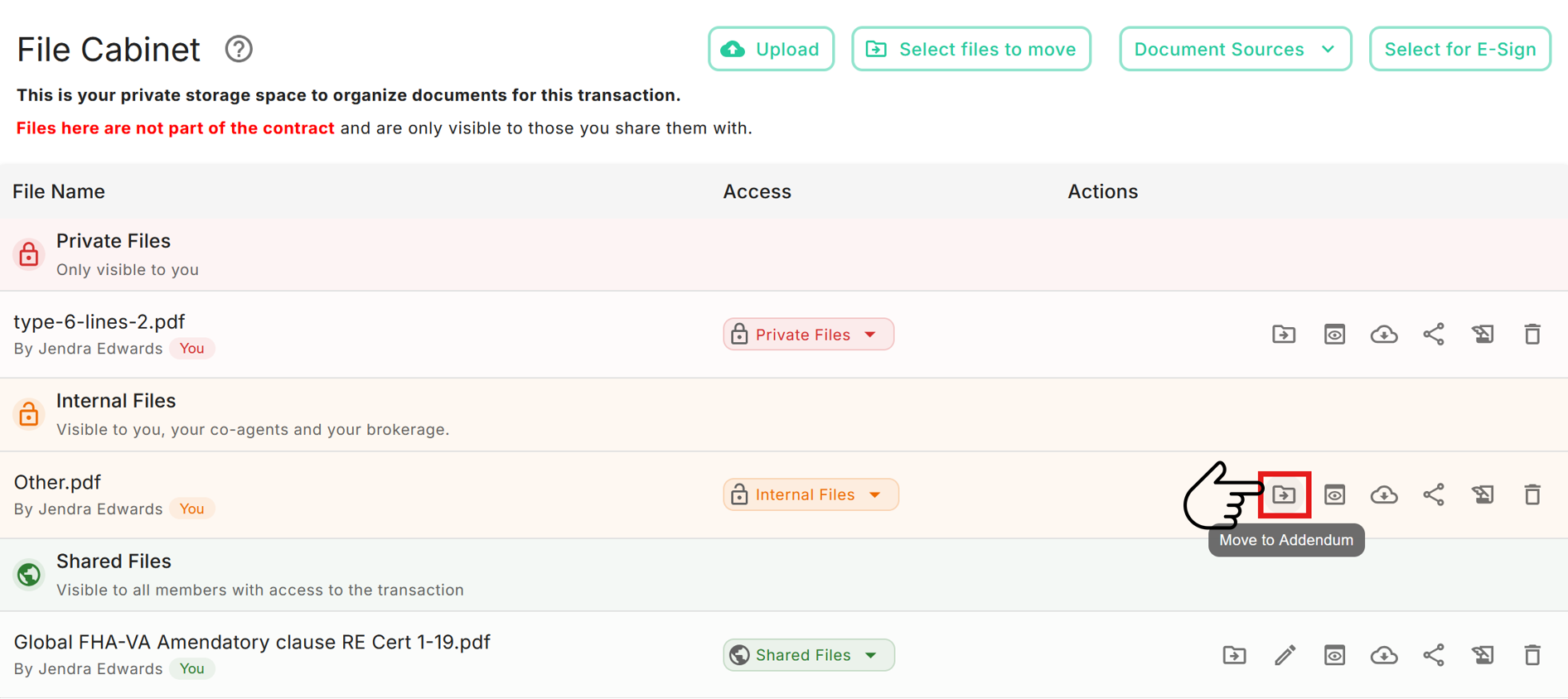
- The selected document moves back to the active contract immediately.