Buyer's Information
Adding Buyer Details
In this card you can add Buyer, Buyer Agent, or Buyer Attorney.
-
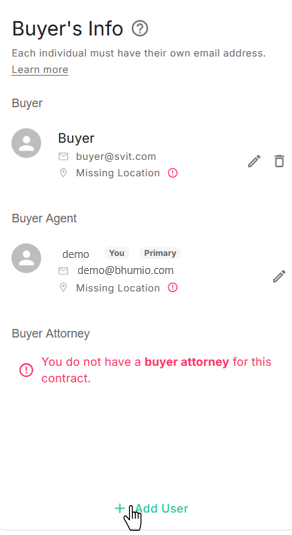
Navigate to the Buyer's Info card on the Purchase Contract page.
-
At the bottom of the section, click + Add User. A dialog box will appear for entering Buyer information.
-
Select the user type, such as Buyer, Buyer Agent, or Buyer Attorney.
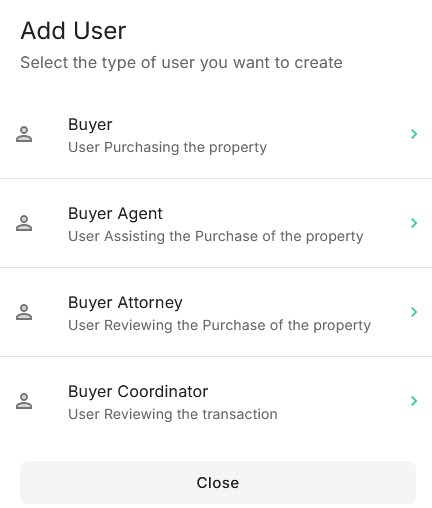
- Add Buyer
- Add Buyer Agent
- Add Buyer Attorney
- Add Buyer Coordinator
-
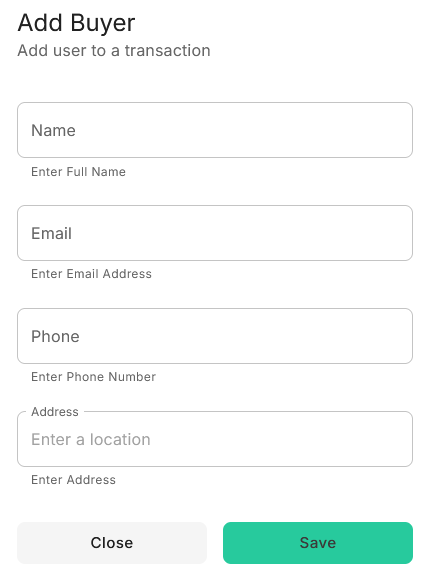
When you select Buyer as the user type, a dialog box will appear to enter the Buyer's details. If the Buyer's address matches the property address, you can use it directly.
-
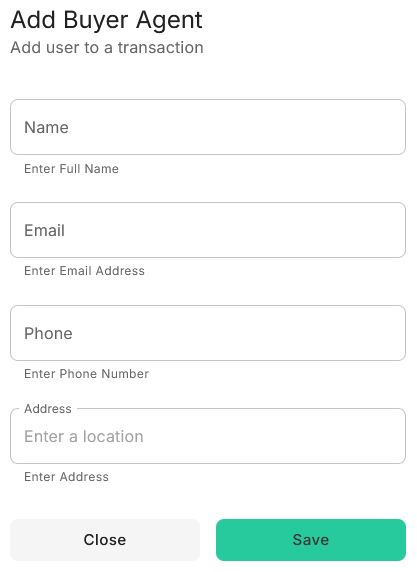
When you select Buyer Agent as the user type, a dialog box will appear to enter the Agent's details. The system will display matching contacts from your Address Book, allowing you to select an existing contact or enter new details. The new information will be saved to your Address Book automatically.
-
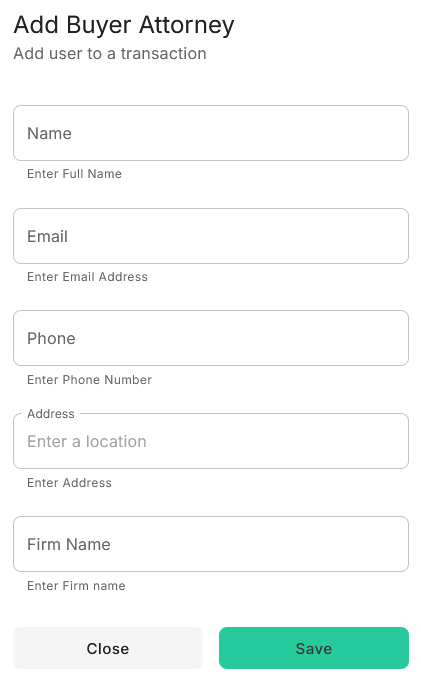
When you select Buyer Attorney as the user type, a dialog box will open to enter the Attorney's details. The system will show matching contacts from your Address Book, allowing you to select an existing contact or add new details. The information will be saved to your Address Book automatically.
-
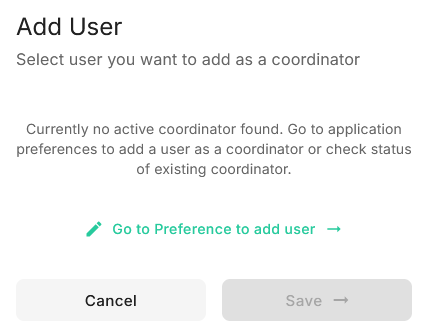
When you select Buyer Coordinator as the user type, a dialog box will open to select a Coordinator. If no active Coordinator is available, go to Application Preferences to add a user as a Coordinator or check the status of an existing Coordinator.
- Click Save to update the transaction and add the information to your Address Book.
Editing Buyer Details
- In the Buyer's Info section, locate the Edit User icon next to the Buyer's name.
- Click Edit User, update the details in the dialog box, and click Save.
- The transaction and Address Book will automatically update with the new information.