Items with Property
Navigate to the Items with Property card on the Purchase Contract page.
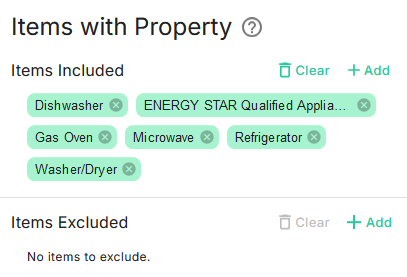
The system will automatically retrieve the Items with Property details from the MLS listing. If you need to add more items to Items Included or Items Excluded, you can do so here.
tip
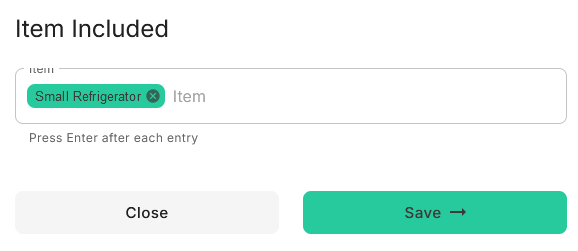
Helpful Tip: To complete an item addition, press the Enter key after typing each item. For example, type Small Refrigerator, press Enter, and then add the next item.
To add items to Items Included, click +Add and enter multiple items, pressing the Enter key after each one.
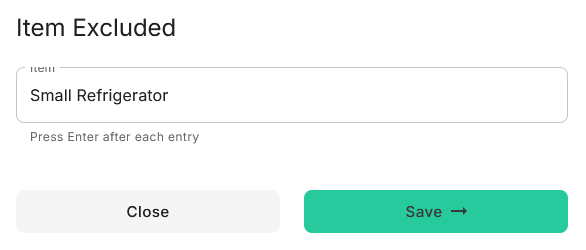
To exclude items under Items Excluded, click +Add and enter multiple items, pressing the Enter key after each one.
To delete items from Items Included or Items Excluded, click Clear.