Key Dates
-
Navigate to the Key Dates card on the Purchase Contract page.
-
Click the Change Key Dates
icon located at the top or bottom of the Key Dates card.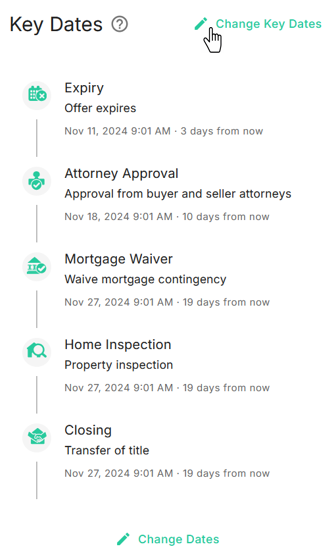
-
The system will display a dialog box allowing you to edit the Key Dates.

-
The system will validate the Key Dates, ensuring, for example, that the Closing Date is after the Inspection Date.
-
Click the Save button to save the updated Key Dates.